

This guide will show you how to set the Difficulty Level on your Palworld Server
Not a client yet? Order a Palworld Server today with Citadel Servers
In Palworld, adjusting your server's difficulty level allows you to customize the gameplay experience to better suit your preferences and the needs of your player community. Whether you want to create a more relaxed environment for casual exploration and base building or introduce a greater challenge for players seeking more demanding survival and combat encounters, configuring the world settings can help you achieve your desired experience. By modifying the available difficulty options, you can tailor various aspects of gameplay, including the challenges players face while exploring the world, battling enemies, gathering resources, and managing survival mechanics. If you are hosting a Palworld dedicated server, you can adjust its difficulty settings through the server's configuration file. This allows you to customize the gameplay experience without relying solely on the default settings. Before making any changes, it is recommended to stop your server to ensure that the configuration file can be safely edited and that your adjustments are properly applied when the server starts again. You should also create a backup of your existing configuration file so you can restore your previous settings if necessary. In this guide, we will walk you through the steps to set the difficulty level on your Palworld server by accessing and modifying the appropriate configuration settings. By following these instructions, you can configure your server to provide a gameplay experience that aligns with your community's expectations.
(Note: Servers use custom difficulty settings by default. Do not modify the Difficulty=None setting, as changing this value may cause configuration issues.)
Changing the Difficulty Settings
1. Log in to your Game Control Panel.
2. Before making any modifications, stop the server from running by clicking the Stop button.

3. Navigate to the Configuration Files section.
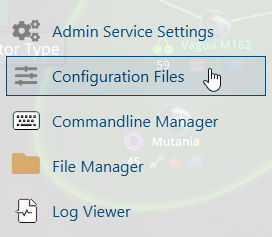
4. In Configuration Files, look for the Pal\Saved\Config\WindowsServer\PalWorldSettings.ini file and click the Text Editor beside the Config Editor.

5. In the Text Editor, modify the desired difficulty settings according to your preferences.
| Setting | Casual | Normal | Hard | Hardcore |
| XP Rate Multiplier | 1.3 |
1.0 |
0.8 |
0.8 |
| Pal Capture Rate | 2.0 |
1.0 |
0.8 |
0.8 |
| Player Outgoing Damage Multiplier | 1.5 |
1.0 |
0.5 |
0.5 |
| Player Incoming Damage Multiplier | 0.7 |
1.0 |
4.0 |
2.0 |
| Gatherable Item Drop Rate | 2.0 |
1.0 |
0.5 |
1.0 |
| Enemy Item Drop Rate | 2.0 |
1.0 |
0.5 |
1.0 |
| Pal Egg Default Hatching Time | 0.0 |
2.0 |
4.0 |
4.0 |
| Fishing Difficulty Rate | 0.8 |
1.0 |
1.0 |
1.0 |
| Death Penalty | No Penalty |
Lose Items + Equipment |
Lose Full Inventory |
Lose Full Inventory |
| Hardcore Mode | Disabled |
Disabled |
Disabled |
Enabled |
| Allow Character Recreation in Hardcore | Disabled |
Disabled |
Disabled |
Enabled |
| Allow Global Palbox Import | Enabled |
Enabled |
Enabled |
Disabled |
| Allow Global Palbox Export | Enabled |
Enabled |
Enabled |
Disabled |
(Note: If the current configuration file is corrupted or incorrectly formatted, the server will attempt to load the most recently saved backup. If the backup file is also corrupted, the server may fail to start. To resolve this issue, clear the contents of the configuration file while retaining [/Script/Pal.PalGameWorldSettings] as the first line. Then, generate and export a new configuration file using the Palworld Options Generator)
6. After editing, click Save to apply the changes.

You can now start playing on your server.
Did the above information not work for you?
Please click here to contact our support via a ticket.