

This guide will show you how to adjust the Dropped-Item Despawn Timer in your Palworld Server
Not a client yet? Order a Palworld Server today with Citadel Servers
Adjusting the dropped-item despawn timer on your Palworld server allows you to control how long dropped items remain in the game world before they automatically disappear. Customizing this setting can help you tailor the gameplay experience to your community's preferences, whether you want items to remain available for longer periods or disappear sooner to reduce item accumulation. This can be particularly useful for servers with multiple active players, where dropped items may accumulate during exploration, resource gathering, and combat. By modifying the appropriate server configuration setting, you can customize the dropped-item despawn duration to better suit your server's needs. In this guide, we'll walk you through how to access your Palworld server's configuration files and adjust the dropped-item despawn timer to your preferred value.
Configuring Dropped-Item Despawn Time
(Note: The world will also remove dropped items once the dropped-item maximum value is exceeded. Learn how to adjust the dropped-item maximum value here.)
1. Log in to your Game Control Panel.
2. Before making any modifications, stop the server from running by clicking the Stop button.

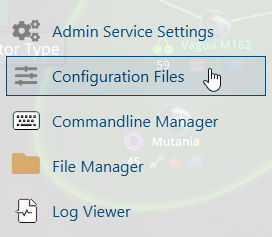
3. Navigate to the Configuration Files section.
4. In Configuration Files, look for the Pal\Saved\Config\WindowsServer\PalWorldSettings.ini file and click the Text Editor beside the Config Editor.

5. In the Text Editor, locate the DropItemAliveMaxHours parameter and enter your desired value between 0.0 and 240.0 hours.
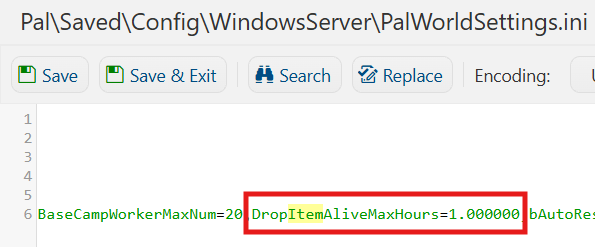
6. After editing, click Save to apply the changes.

You can now start playing on your server.
Did the above information not work for you?
Please click here to contact our support via a ticket.